AI photo retouch, as layers you can fade

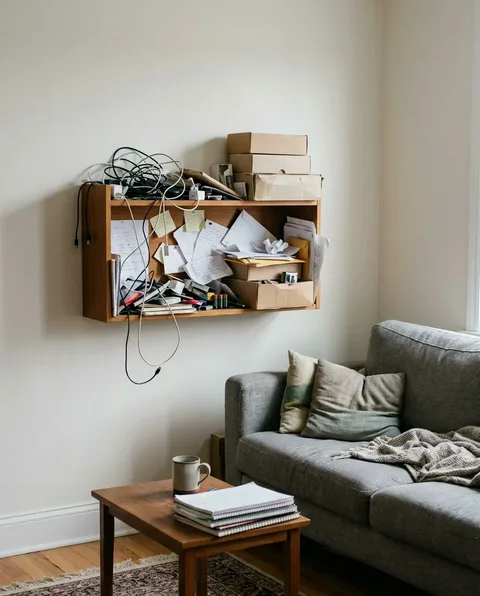
Before: A small living room with a shelf and a grey sofaBefore
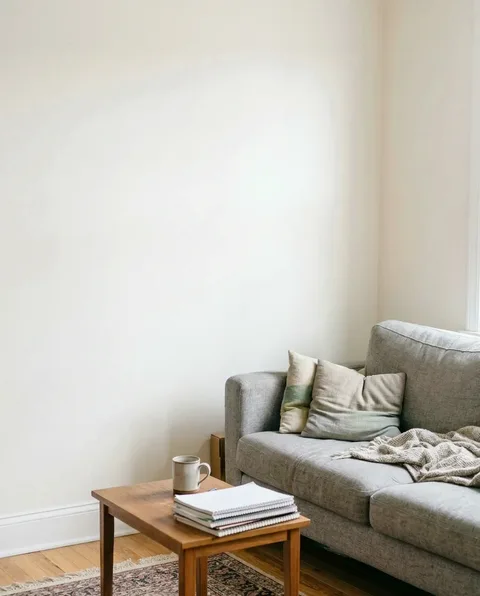
After: A small living room with a shelf and a grey sofaAfter
  1. Remove: the cluttered shelf
  2. Look: Bright and airy 85%

This AI photo retouch works in layers. Apply a Look (Natural skin, Bright and airy, Film, Black and white, Warm portrait, Cool matte) to the whole photo, or mark a small area to tidy, and each change arrives as its own layer. Fade a Look to 40% if 100% is too strong, hide a fix to compare, and keep your original under all of it.

Updated

How it works

  1. 1

    Open the photo

    Drop the photo. Pick Look for the whole photo, or Edit or Remove for a small area.

  2. 2

    Preview and run

    Looks preview in your browser for free; run the one you like to make it a real layer. For an area, mark it and say what to tidy.

  3. 3

    Fade to taste and export

    Drag each layer’s opacity until it looks natural, then download the flattened photo or the layered ZIP.

Good for

  • A consistent grade across a set of product or room photos
  • Portraits of you or of people who gave permission, gently retouched
  • Food photos that need warmer light and fewer crumbs
  • Landscape photos with a sign, bin or wire to tidy
Before: A small living room with a shelf and a grey sofaBefore
After: A small living room with a shelf and a grey sofaAfter
  1. Remove: the cluttered shelf
  2. Look: Bright and airy 85%
Remove: the cluttered shelf · Look: Bright and airy 85%
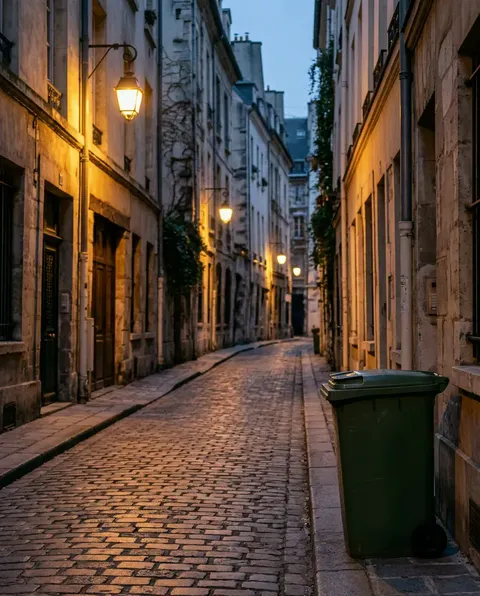
Before: An empty cobbled street at duskBefore
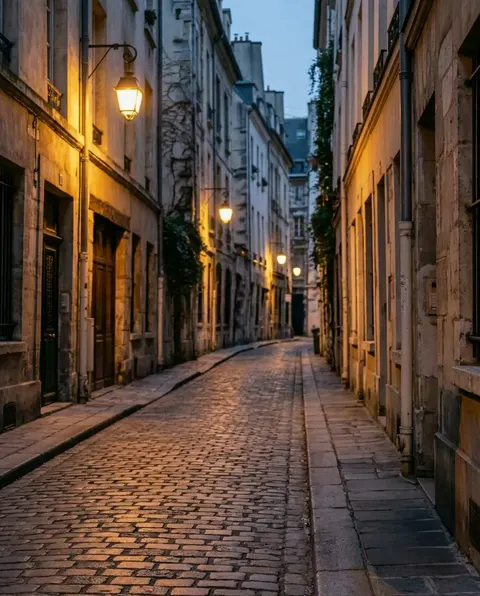
After: An empty cobbled street at duskAfter
  1. Remove: a bin
  2. Look: Film 60%
Remove: a bin · Look: Film 60%

01

Why a Look layer is better than a filter

A filter changes every pixel the same way. A Look layer is a real re-grade from the model, so skin, sky and shadows get their own treatment, and because it is a layer you can set its strength afterwards with the opacity slider instead of running it again.

02

Retouching people, within limits

Natural skin evens light and small blemishes without changing the face. Body shape, age, weight and face swaps are refused, as are photos of public figures, and every run on a photo with a person needs your confirmation that it is you or someone who agreed.

03

From retouch to final file

The flattened download is free at the photo’s own size. For print or large screens, export with a 2x or 4x upscale, or a final 4K render of the flattened photo; each shows its price first.

Credits per edit

The cost shows on the button first. Failed edits are refunded. Plans and credit packs

JobCredits
Area edit, remove or Look, 1KNano Banana 2.124 credits
Area edit, remove or Look, 2KNano Banana 2.135 credits
Area edit or remove, 4KNano Banana 2.152 credits
Edit the words in a photo, 1KGPT Image 235 credits
Edit the words in a photo, 2KGPT Image 257 credits
Expand to a ratio, 2KNano Banana 2.135 credits
Cut out the subjectRecraft Remove Background13 credits
2x upscale on exportRecraft Crisp Upscale7 credits
4x upscale on export (up to 24 MP)Topaz Image Upscale113 credits
Final 4K render of the flattened photoNano Banana Pro136 credits
Layer changes, flattened download, layered PNG ZIPFree

Questions

Are the Look previews free?

Yes. The preview is drawn in your browser. Only running a Look as a layer spends credits.

Can it smooth skin or change a face?

Natural skin evens light and small blemishes. Reshaping faces or bodies, changing age and face swaps are refused.

Which model makes the Looks?

Nano Banana 2.1 (Google), at 1K or 2K.

Can I undo a retouch later?

Yes. Hide or delete the layer at any time; your original photo is the bottom layer and never changes.