Photo editor with layers: every AI edit on its own layer
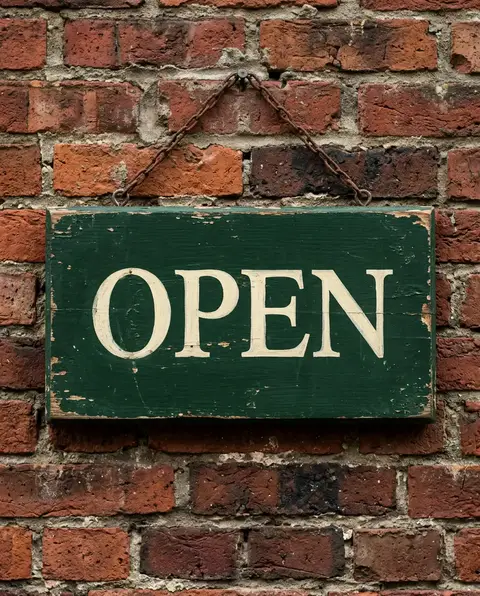
Before
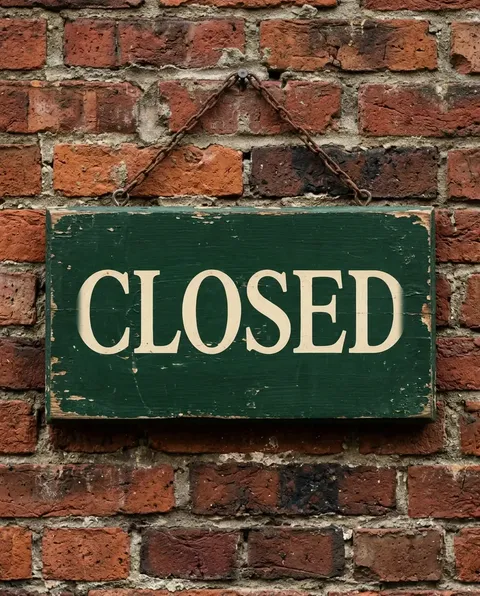
After
Text: OPEN → CLOSED
Look: Film 60%
This photo editor with layers keeps your photo untouched at the bottom of the stack. Paint or lasso an area, say what should change, and the result arrives as a new layer that only covers the area you marked. Hide it, fade it, move it above or below another edit, or redo it with new words, and the rest of the photo never moves.
Updated
How it works
1
Open a photo
Drop a JPG, PNG or WebP (HEIC where your browser opens it). It becomes the base layer and is never changed.
2
Mark the area and say the change
Brush or lasso the part to change, type what should happen ("make the mug red", "remove the crumbs"), see the credits, and run. A soft teal sweep shows the area while it works.
3
Arrange the layers and export
Each result is a layer card: eye to hide, slider to fade, arrows to reorder, Redo for a new attempt on the same mask. Download a flattened JPG, PNG or WebP at the photo’s own size, or a ZIP of every layer as PNG.
Good for
Trying two versions of one change and keeping the better layer
Product photos where the product must stay pixel-exact
Room, street and food photos with several small fixes
Anyone who wants AI edits they can undo one at a time
Before
After
Text: OPEN → CLOSED
Look: Film 60%
Text: OPEN → CLOSED · Look: Film 60%
Before
After
Remove: a crumb
Look: Warm portrait 80%
Expand: to 1:1
Remove: a crumb · Look: Warm portrait 80% · Expand: to 1:1
01
Why an area layer cannot change the rest of your photo
Many AI editors send the whole picture to a model and hand back a new copy, which can shift colours or soften faces you never touched. Here only a crop around the marked area goes to the model, and the result is pasted back through a feathered mask: outside the mask the layer is fully transparent, so every pixel of your photo outside the area is exactly the one you uploaded. You can check it with the compare slider at any time.
02
What the layer controls cost
Hiding, fading, reordering, renaming, duplicating and deleting layers are all done in your browser and are free, as are the flattened download at the photo’s own size and the layered PNG ZIP. Credits are spent only when a model makes something new: an area edit, a removal, a text edit, a Look, an expand, a cut-out, an upscale or the final 4K render. The price shows before every run, and failed jobs return their credits by themselves.
03
Projects that keep their layers
Signed in, a photo becomes a project that saves itself after every change, layers and all, so a reload or a new device opens the same stack. Each plan keeps a number of saved projects; photos and results that are not in a project are deleted after seven days.
4x upscale on export (up to 24 MP)Topaz Image Upscale
Topaz Image Upscale
113 credits
Final 4K render of the flattened photoNano Banana Pro
Nano Banana Pro
136 credits
Layer changes, flattened download, layered PNG ZIP
—
Free
Questions
Is this a full replacement for Photoshop layers?
No. It is an AI editor whose edits arrive as layers: you can hide, fade, reorder, rename, duplicate and delete them, but there are no blend modes, adjustment layers or pixel brushes. For that kind of work, export the layered ZIP and open the PNGs in a desktop editor.
Which AI models make the layers?
Area edits, removals, Looks and expands run Nano Banana 2.1 (Google); text edits run GPT Image 2 (OpenAI); cut-outs run Recraft Remove Background; upscales run Recraft Crisp Upscale (2x) and Topaz Image Upscale (4x); the final 4K render runs Nano Banana Pro. The layer card names the model once it finishes.
Is there a watermark?
No, on any plan, including the free credits. Downloads come back at the size of your photo.
Can I edit people in my photos?
Yes, photos of you, of someone who gave you permission, or with no real person in them; you tick a box saying so before a run. Changing bodies or ages, swapping faces, and editing public figures are refused.
What happens to my photos?
They stay private to your account. Uploads and results that are not saved in a project are deleted after seven days; a project keeps its files until you delete it.