
Guides
Guides to editing photos in layers
Each guide takes one editing job, says what the AI does well and where it needs a second pass, and opens the layer studio on the tool that suits the job, so you can try it on your own photo straight away.
Updated
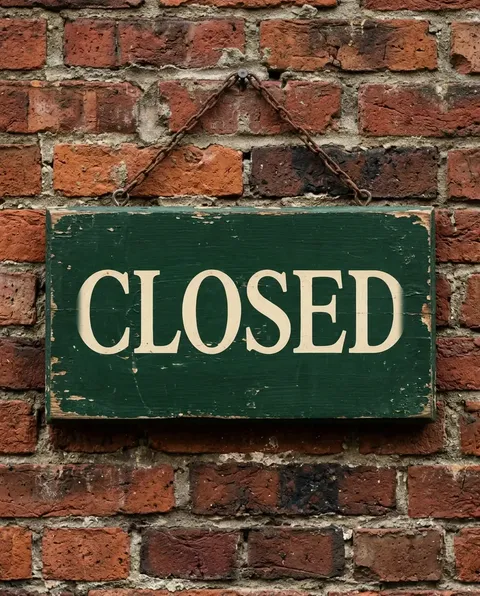
Photo editor with layers: every AI edit on its own layer
This photo editor with layers keeps your photo untouched at the bottom of the stack. Paint or lasso an area, say what should change, and the result arrives as a new layer that only covers the area you marked. Hide it, fade it, move it above or below another edit, or redo it with new words, and the rest of the photo never moves.
OpenEdit text in image and photo, keeping the font look
To edit text in a photo, mark the words on the sign, menu, label or poster, type what it should say, and run. The new words are drawn in the same style, colour and perspective as the old ones and land on their own layer, so you can compare, fade or redo them without touching the rest of the photo.
Open
AI photo retouch, as layers you can fade
This AI photo retouch works in layers. Apply a Look (Natural skin, Bright and airy, Film, Black and white, Warm portrait, Cool matte) to the whole photo, or mark a small area to tidy, and each change arrives as its own layer. Fade a Look to 40% if 100% is too strong, hide a fix to compare, and keep your original under all of it.
Open