Edit text in image and photo, keeping the font look

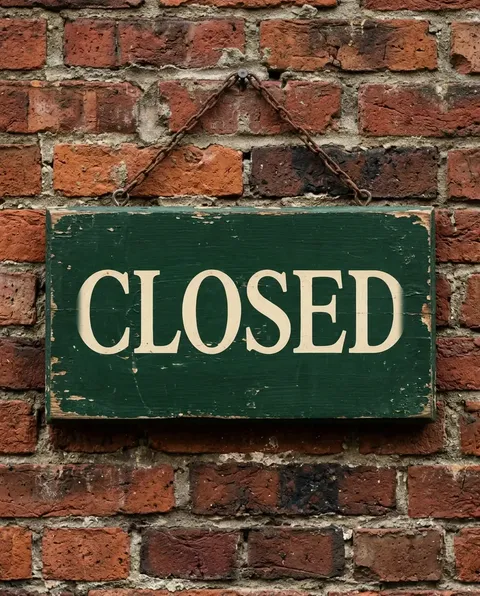
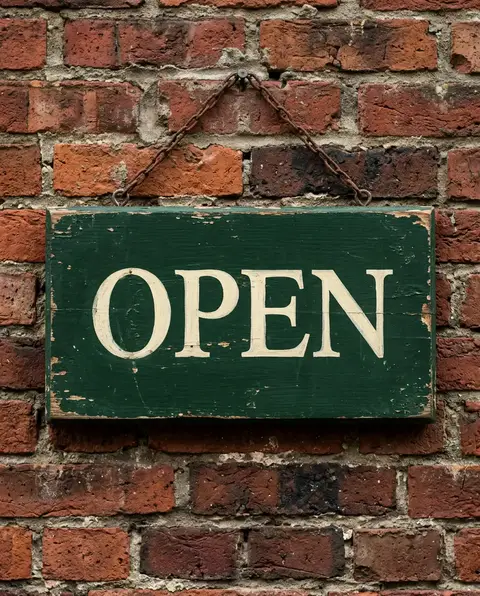
Before: A painted wooden café sign on a brick wallBefore
After: A painted wooden café sign on a brick wallAfter
  1. Text: OPEN → CLOSED
  2. Look: Film 60%

To edit text in a photo, mark the words on the sign, menu, label or poster, type what it should say, and run. The new words are drawn in the same style, colour and perspective as the old ones and land on their own layer, so you can compare, fade or redo them without touching the rest of the photo.

Updated

How it works

  1. 1

    Open the photo

    Drop the photo with the words to change. Pick Text in the tool list.

  2. 2

    Mark the words and type the new ones

    Brush or lasso the words, a little wider than the letters. Type the new words, and, if it helps, the words there now. Keep to the same length where you can.

  3. 3

    Check the layer and export

    Compare the layer with the original, fade it if it looks too new, or Redo with other words. Download the flattened photo or the layered ZIP.

Good for

  • Shop and café signs: OPEN to CLOSED, a new name, new hours
  • Menu boards and price cards in your own photos
  • Product labels and packaging mock-ups
  • Posters and banners where one word needs to change
Before: A painted wooden café sign on a brick wallBefore
After: A painted wooden café sign on a brick wallAfter
  1. Text: OPEN → CLOSED
  2. Look: Film 60%
Text: OPEN → CLOSED · Look: Film 60%
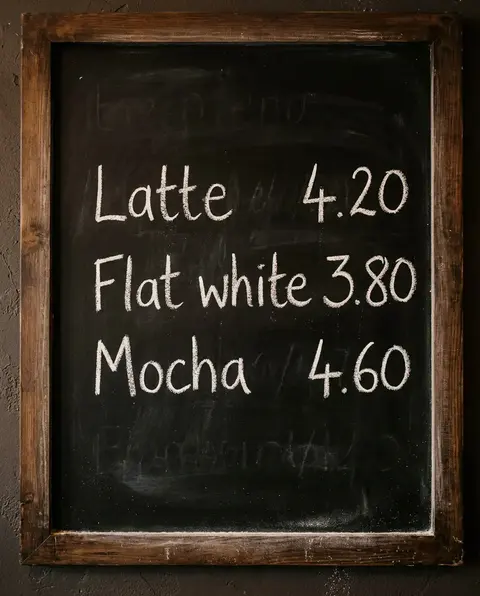
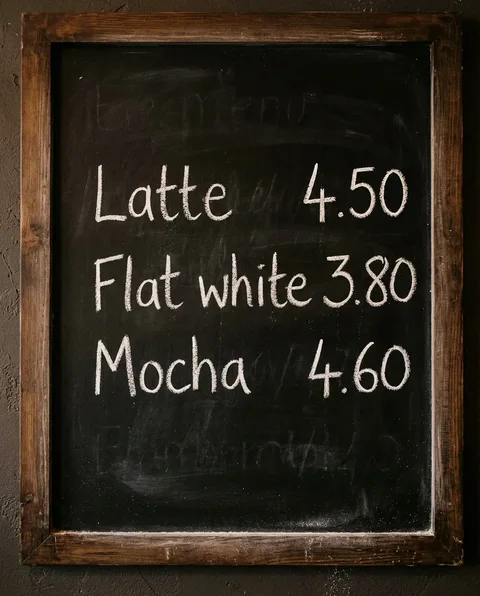
Before: A chalk menu board in a coffee shopBefore
After: A chalk menu board in a coffee shopAfter
  1. Text: 4.20 → 4.50
Text: 4.20 → 4.50

01

Why the length of the new words matters

The model redraws the words inside the area you marked. Words about as long as the old ones keep the size, spacing and baseline of the original; much longer words have to shrink or wrap to fit. If the new text is longer, mark a wider area, or split it into two layers, one per line.

02

Text edits run a different model

Text edits run GPT Image 2 (OpenAI), which draws letters more reliably than general editing models. It costs more per layer than an area edit, and the price shows before you run. At 1K it suits signs and labels seen from a distance; pick 2K for close-up menus and small print.

03

What you may not change

Text edits are for signs, menus, labels, posters and mock-ups you own or have the right to edit. Changing IDs, money, tickets, certificates, receipts or other documents is refused, as is removing watermarks or logos.

Credits per edit

The cost shows on the button first. Failed edits are refunded. Plans and credit packs

JobCredits
Area edit, remove or Look, 1KNano Banana 2.124 credits
Area edit, remove or Look, 2KNano Banana 2.135 credits
Area edit or remove, 4KNano Banana 2.152 credits
Edit the words in a photo, 1KGPT Image 235 credits
Edit the words in a photo, 2KGPT Image 257 credits
Expand to a ratio, 2KNano Banana 2.135 credits
Cut out the subjectRecraft Remove Background13 credits
2x upscale on exportRecraft Crisp Upscale7 credits
4x upscale on export (up to 24 MP)Topaz Image Upscale113 credits
Final 4K render of the flattened photoNano Banana Pro136 credits
Layer changes, flattened download, layered PNG ZIPFree

Questions

Will the new text match the font?

It matches the look of the original: weight, colour, perspective and wear. It is not the same font file, so letter shapes can differ slightly; compare the layer and redo it if a letter looks off.

Can I change text in another language?

Latin letters work best. Chinese, Japanese and Korean signs often work at 2K on short words; long or decorative text can come out wrong, and the credits return only when a job fails, not when it misses.

Can I edit the text on a receipt or an ID?

No. Documents, money, tickets, IDs and certificates are refused, before any credits are spent.

Can I remove text without writing new words?

Yes. Use Remove on the marked words, and the area is filled to match the surface around it.